Creation Kit: Creating required keyword
Table of Contents
You can click any image to enlarge it
Setting up your weapon mod to use the template
In this section I will show you how to setup the UI_Icon keyword for your custom weapons so that they work with this new loading method. I will be using Plasma Weapons Bundle by Bub200 to demonstrate this method as it already is setup with custom keywords for the weapons included.
Since I did not create the mod we are using for this demo, this will be making a patch to that mod, but the process is the same when doing it with a mod you have made.
Creating UI_Icon Keywords
The first thing you need to do is create a custom UI_Icon keyword for each weapon in your mod. If you have multiple weapon forms but its all the same model then you just need one.
If your weapon has the ability to re-chamber to different ammunition, its best practice to do one keyword for each ammunition type
Here you can see that the author had already done this previously

Creation Kit UI_Icon form
Each UI_Icon keyword must have the following settings:
- Unique ID: Its best if you keep to the UI_Icon_WeaponName convention
- Type set to: UI Icon Linkage Name
- Unique Linkage Name: I like to make this the same as the ID but with out the "UI_Icon_" part
In normal usage you would then make sure your weapon forms each have their corresponding keyword. There are more advanced usages where you change the icon based on a weapon mod but I won't be covering that here.
Now with the basics of UI_Icon keywords explained, the new method that BGS has provided basically looks for a prefix on the Linkage Name of the UI_Icon keyword. If it sees this prefix it then knows to load a file named the same as the Linkage Name.
This prefix is "CCSUP" and it must be the first 5 letters of the Linkage Name.
I think the best naming convention here would be to name it like "CCSUP_WeaponName" that way its easier to read over all.
So back to the CK, here you can see that I have changed the Linkage Name to include the "CCSUP_"
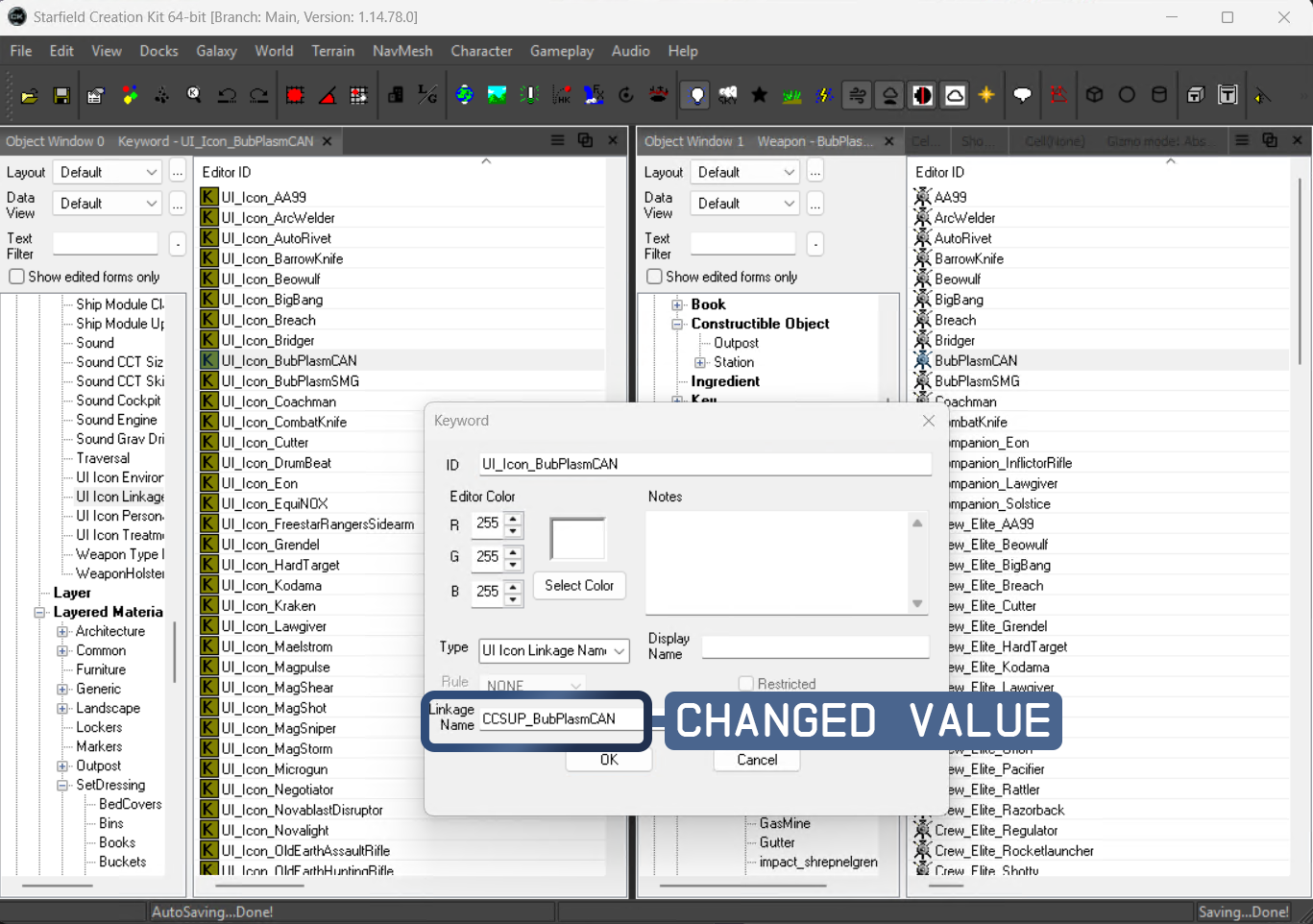
Changed values
We do this for each included weapon

Changed values for multiple weapons
Important #1
The way BGS made this you have to have multiple SWF files as its a one-to-one Linkage Name + SWF (Explained more below)
Important #2
You should only have one UI_Icon keyword on your form, if you add more than one only the first one that it finds alphabetically will work. Just make sure the weapon form only has the custom one you just made.